~/blog/vmware-player-cannot-mount-vmware-tools.md
VMware Player: Cannot Mount VMware Tools
VMware is very convenient, and I use it often. If your machine has roughly a Core i5, 4G of memory, and an SSD, it runs comfortably enough that I would recommend it to anyone who wants to try Linux. This time I got stuck while installing VMware Tools after setting up a PC, so these are my notes from that issue.
Installing VMware Tools
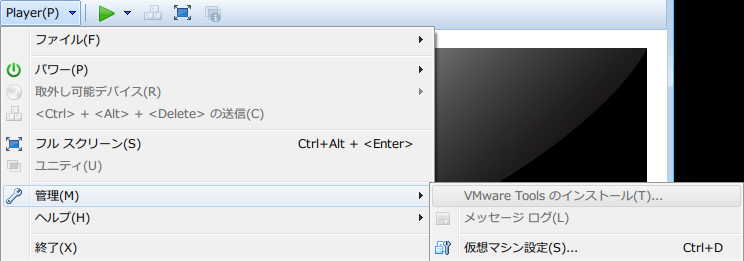
If the guest OS is Linux, while the VM is running you can click [Player(P)] -> [Manage(M)] -> [Install VMware Tools(T)...] from the menu, and the VMware Tools drive will be mounted on the desktop.
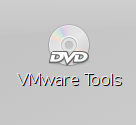
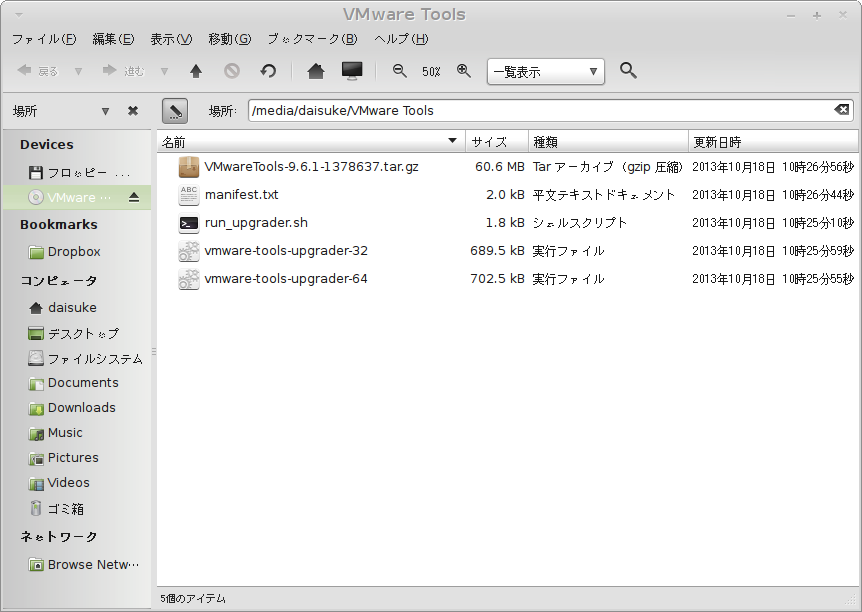
An icon appears on the desktop like the one below. Open it, extract the archive inside, and run the following command from a terminal to install VMware Tools. I usually just accept the defaults and keep pressing Enter during installation.
 |
 |
$ ./vmware-install.plThis time I tried to install it that way, but the VMware Tools drive itself never mounted in the first place. The icon did not appear at all. After getting stuck for several hours, I finally solved it, so I wanted to record it here.
Mounting the VMware Tools drive
The reason it was not mounted at all seems to have been that VMware Tools had not actually been downloaded yet. Perhaps because I started installing and using the OS immediately after installing VMware Player, the necessary files were simply not there.
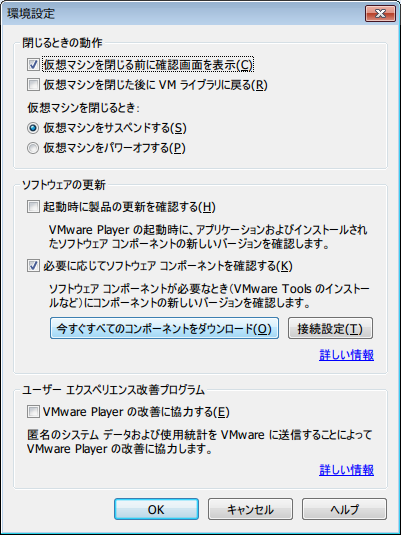
From the Player settings shown below, choose [Download all components now] and download the required files. After that, when I followed the normal installation steps above, the drive mounted successfully.